
Let’s get your first backup running. Each demo walks you through how to start your first backup in under 3 minutes.
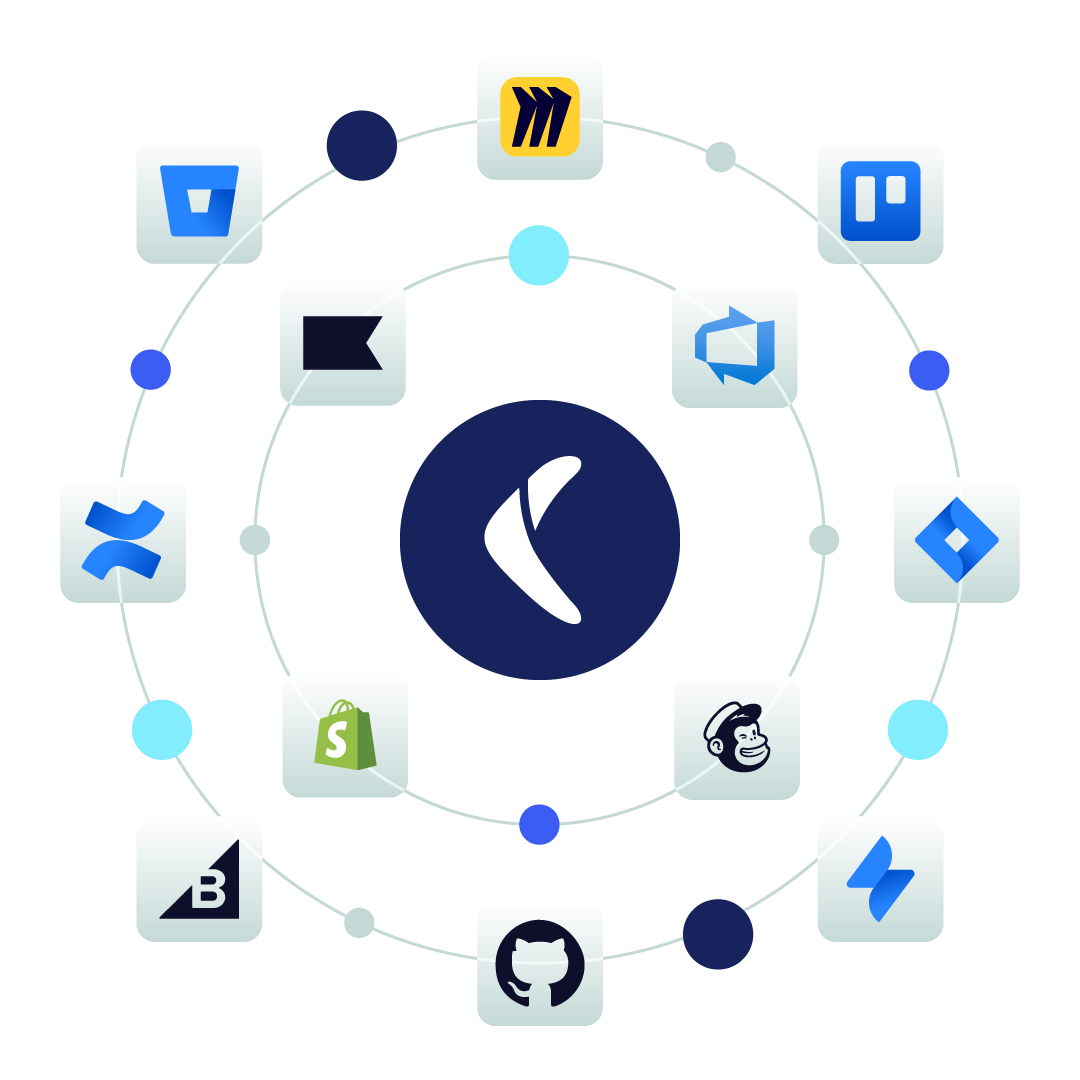
Protect your Jira data in minutes. This walkthrough covers connecting your account and running your first backup.
Protect your Confluence data in minutes. This walkthrough covers connecting your account and running your first backup.
Protect your Bitbucket data in minutes. This walkthrough covers connecting your account and running your first backup.
Protect your GitHub data in minutes. This walkthrough covers connecting your account and running your first backup.
Protect your monday.com data in minutes. This walkthrough covers connecting your account and running your first backup.
Protect your Shopify data in minutes. This walkthrough covers connecting your account and running your first backup.
Protect your BigCommerce data in minutes. This walkthrough covers connecting your account and running your first backup.
Protect your QuickBooks Online data in minutes. This walkthrough covers connecting your account and running your first backup.
Protect your Trello data in minutes. This walkthrough covers connecting your account and running your first backup.
Protect your Miro data in minutes. This walkthrough covers connecting your account and running your first backup.
Protect your Klaviyo data in minutes. This walkthrough covers connecting your account and running your first backup.
Protect your Azure DevOps data in minutes. This walkthrough covers connecting your account and running your first backup.
The first backup is the longest, typically taking up to an hour as we catalogue all your account data. After that, backups are much faster since only new changes are saved incrementally.
Rewind is a fully cloud-based solution. Your backups are securely stored on encrypted servers, accessible anytime and from anywhere, without taking up space on your local drive.
You can restore data right from within the Rewind application in just a few clicks. First, perform a manual backup to save the most recent copy of your data. Then, log in to your Rewind account and navigate to the Advanced Restore tab. From there, choose the date and time you would like to restore to, and click Restore. You can visit the Rewind Knowledge Base for more details, or send an email to help@rewind.com if you need assistance.
Our Knowledge Base has a visual overview of Rewind’s key features. Plus, you can learn more about all of Rewind integrations and plans in our Knowledge Base.